
Important Note:
This project has been unofficially forked from https://github.com/techniccontroller/wordclock_esp8266 which was initially created by techniccontroller. Copyright and licensing is respected.
Wordclock 2.0
Wordclock 2.0 with ESP8266 and NTP time
More details on my website: https://techniccontroller.com/word-clock-with-wifi-and-neopixel/
Languages
The Wordclock is available in German, English and Italian language. By default the language is German. To use the English or Italian language please replace the file wordclockfunctions.ino with wordclockfunctions.ino_english or wordclockfunctions.ino_italian. The code compiles only with one file named wordclockfunctions.ino. So please rename the file you want to use to wordclockfunctions.ino and replace the existing file.
Features
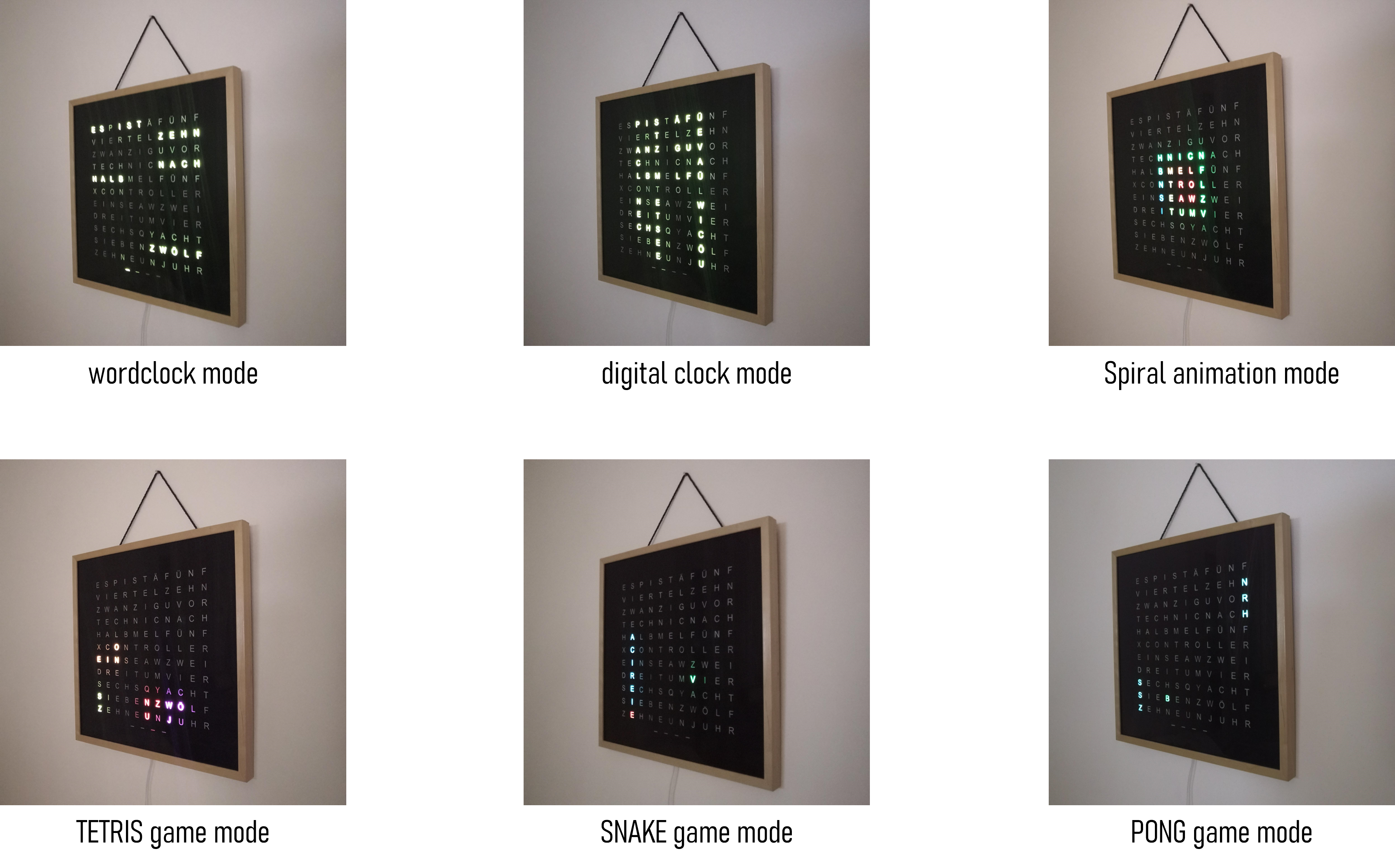
- 6 modes (Clock, Digital Clock, SPIRAL animation, TETRIS, SNAKE, PONG)
- time update via NTP server
- automatic summer/wintertime change
- easy WIFI setup with WifiManager
- configurable color
- configurable night mode (start and end time)
- configurable brightness
- automatic mode change
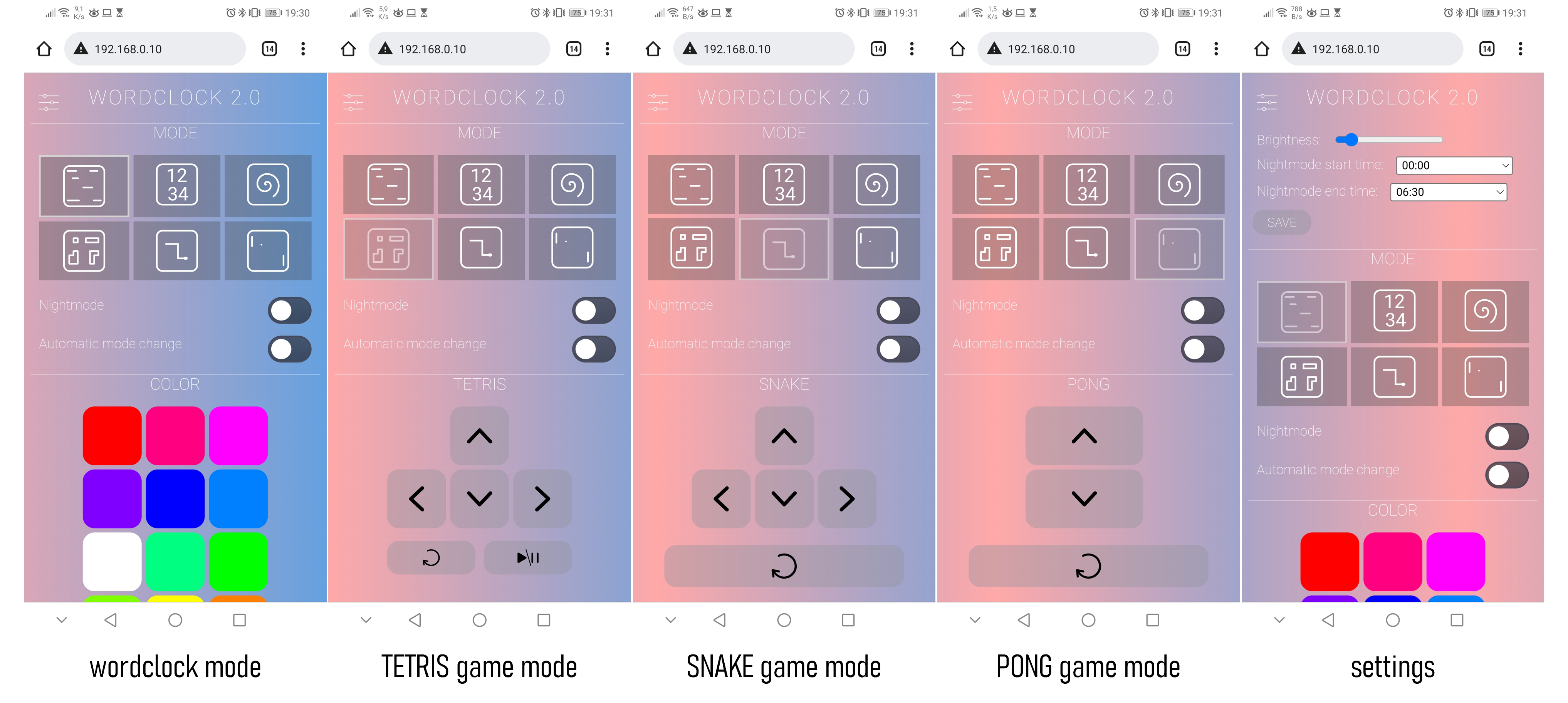
- webserver interface for configuration and control
- physical button to change mode or enable night mode without webserver
- automatic current limiting of LEDs
Pictures of clock
Screenshots of webserver UI
Quickstart
- Clone the project into the sketch folder of the Arduino IDE,
- Rename the file "example_secrets.h" to "secrets.h". You don't need to change anything in the file if you want uses the normal WiFi setup with WiFiManager (see section "Remark about the WiFi setup").
- Install the additional libraries and flash it to the ESP8266 as usual (See section Upload program to ESP8266 below).
- The implemented WiFiManager helps you to set up a WiFi connection with your home WiFi -> on the first startup it will create a WiFi access point named "WordclockAP". Connect your phone to this access point and follow the steps which will be shown to you.
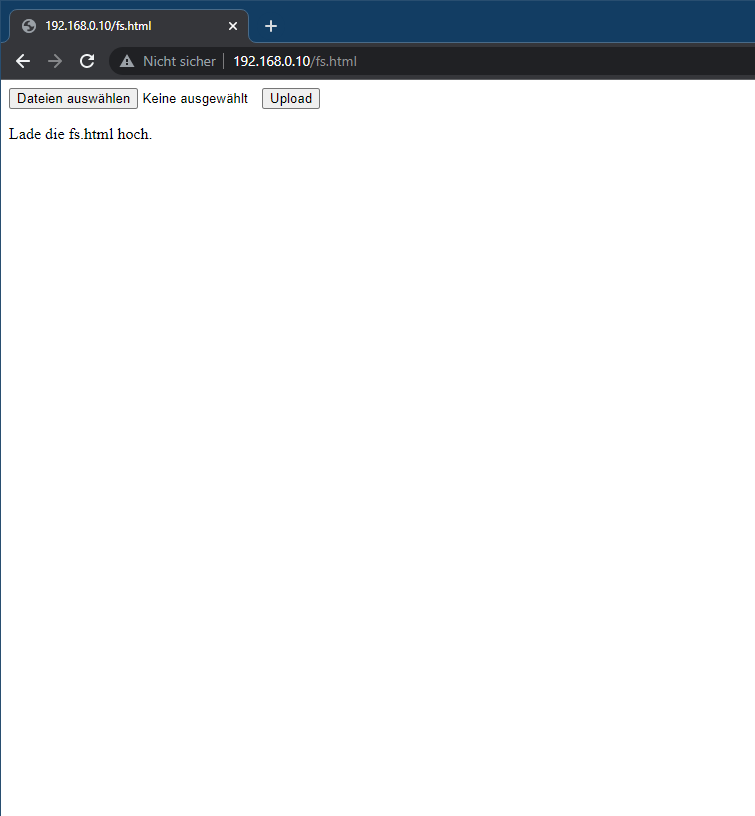
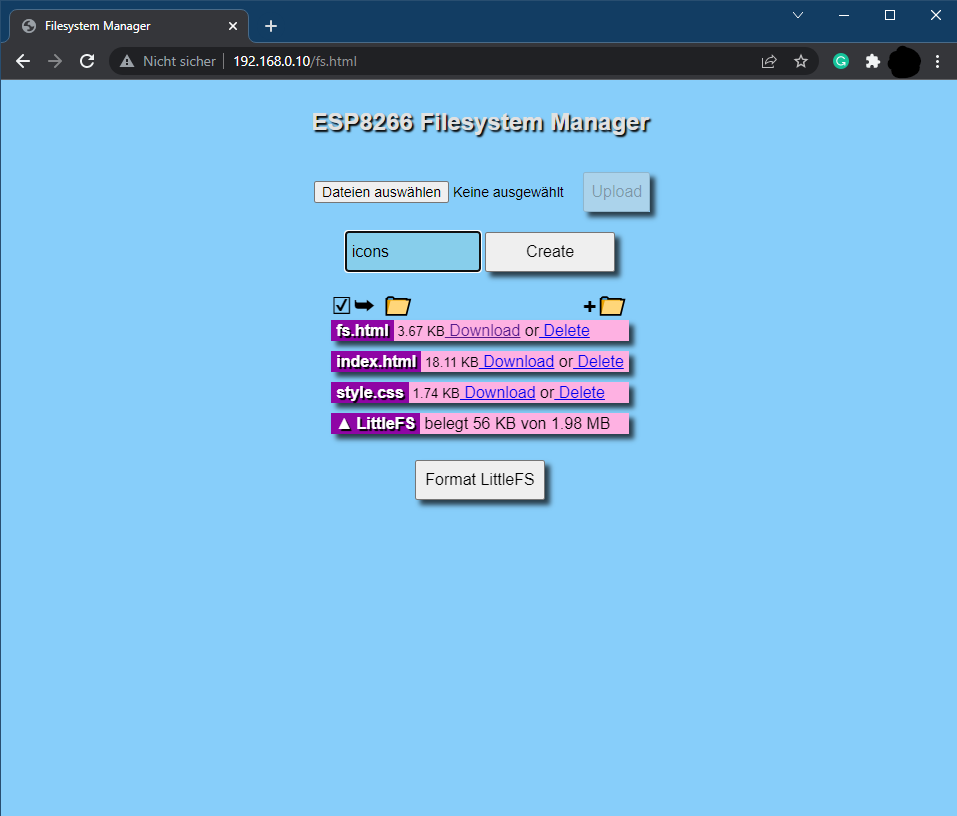
- After a successful WiFi setup, open the browser and enter the IP address of your ESP8266 to access the interface of the webserver.
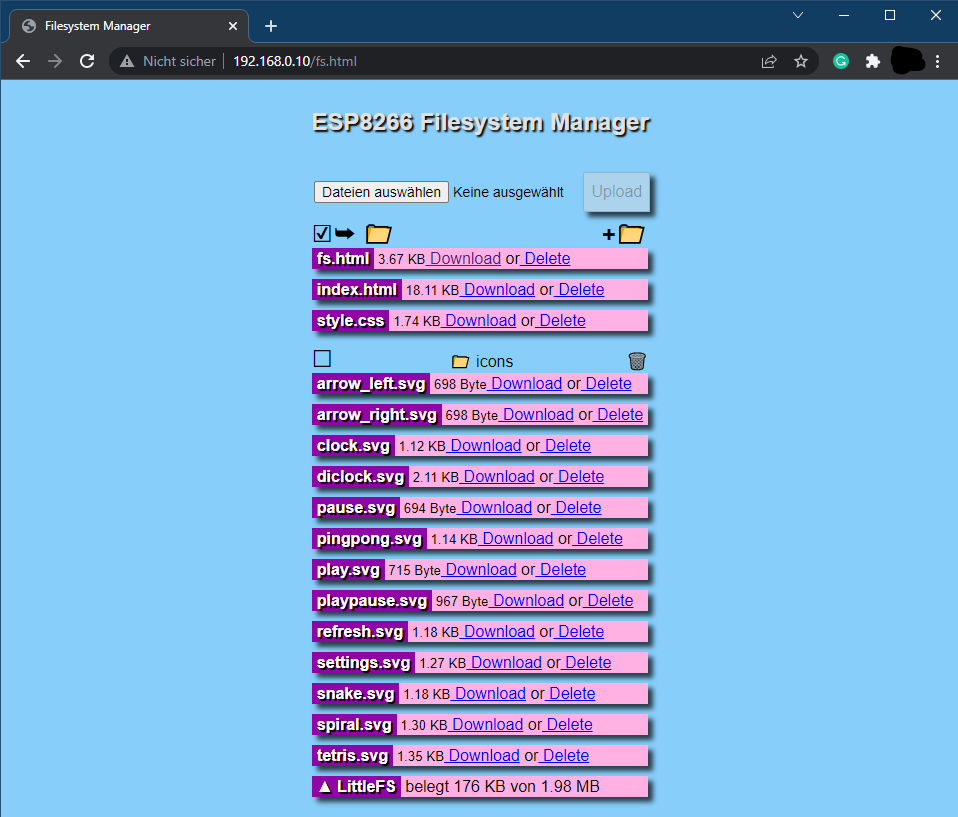
- Here you can then upload all files located in the folder "data". Please make sure all icons stay in the folder "icons" also on the webserver.
Install needed Libraries
Please download all these libraries as ZIP from GitHub, and extract them in the libraries folder of your Sketchbook location (see File -> Preferences):
- https://github.com/adafruit/Adafruit-GFX-Library
- https://github.com/adafruit/Adafruit_NeoMatrix
- https://github.com/adafruit/Adafruit_NeoPixel
- https://github.com/tzapu/WiFiManager
- https://github.com/adafruit/Adafruit_BusIO
Remark about the WiFi setup
Regarding the Wifi setting, I have actually implemented two variants:
- By default the WifiManager is activated. That is, the word clock makes the first time its own WiFi (should be called "WordclockAP"). There you simply connect to the cell phone and you can perform configuration of the WiFi settings conveniently as with a SmartHome devices (Very elegant 😊)
- Another (traditional) variant is to define the wifi credentials in the code (in secrets.h).
- For this you have to comment out lines 230 to 251 in the code of the file wordclock_esp8266.ino (/* before and */ after)
- and comment out lines 257 to 305 (/* and */ remove)
Remark about Logging
The wordclock send continuously log messages to the serial port and via multicast UDP. If you want to see these messages, you have to
- open the serial monitor in the Arduino IDE (Tools -> Serial Monitor). The serial monitor must be set to 115200 baud.
OR
- run the following steps for the multicast UDP logging:
- starting situation: wordclock is connected to WLAN, a computer with installed Python (https://www.python.org/downloads/) is in the same local area network (WLAN or LAN doesn't matter).
- open the file multicastUDP_receiver.py in a text editor and in line 81 enter the IP address of the computer (not the wordclock!).
# ip address of network interface
MCAST_IF_IP = '192.168.0.7'
- execute the script with following command:
python multicastUDP_receiver_analyzer.py
-
now you should see the log messages of the word clock (every 5 seconds a heartbeat message and the currently displayed time). If this is not the case, there could be a problem with the network settings of the computer, then recording is unfortunately not possible.
-
If special events (failed NTP update, reboot) occur, a section of the log is saved in a file called log.txt. In principle, the events are not critical and will occur from time to time, but should not be too frequent.